Work Log
The work log is the main reporting interface. It shows work entries in a filterable, paginated table alongside a calendar and a quick-entry form.
Calendar
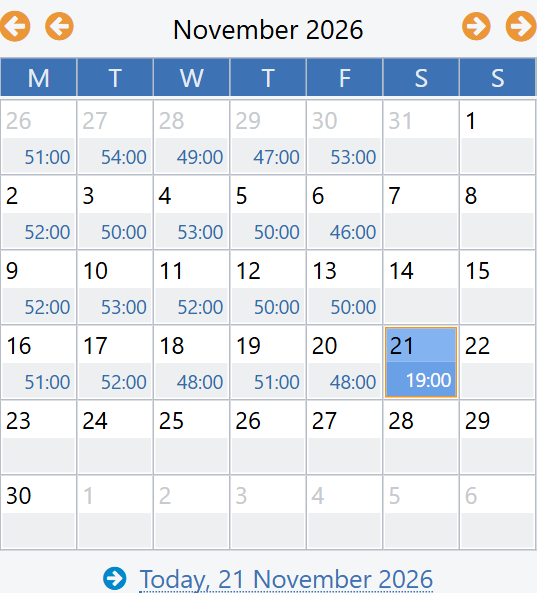
The left column shows a monthly calendar. Click any date to filter the table to that date and pre-fill the date field in the entry form. Days with logged entries are marked with dots; use the arrows to change month.
Filters
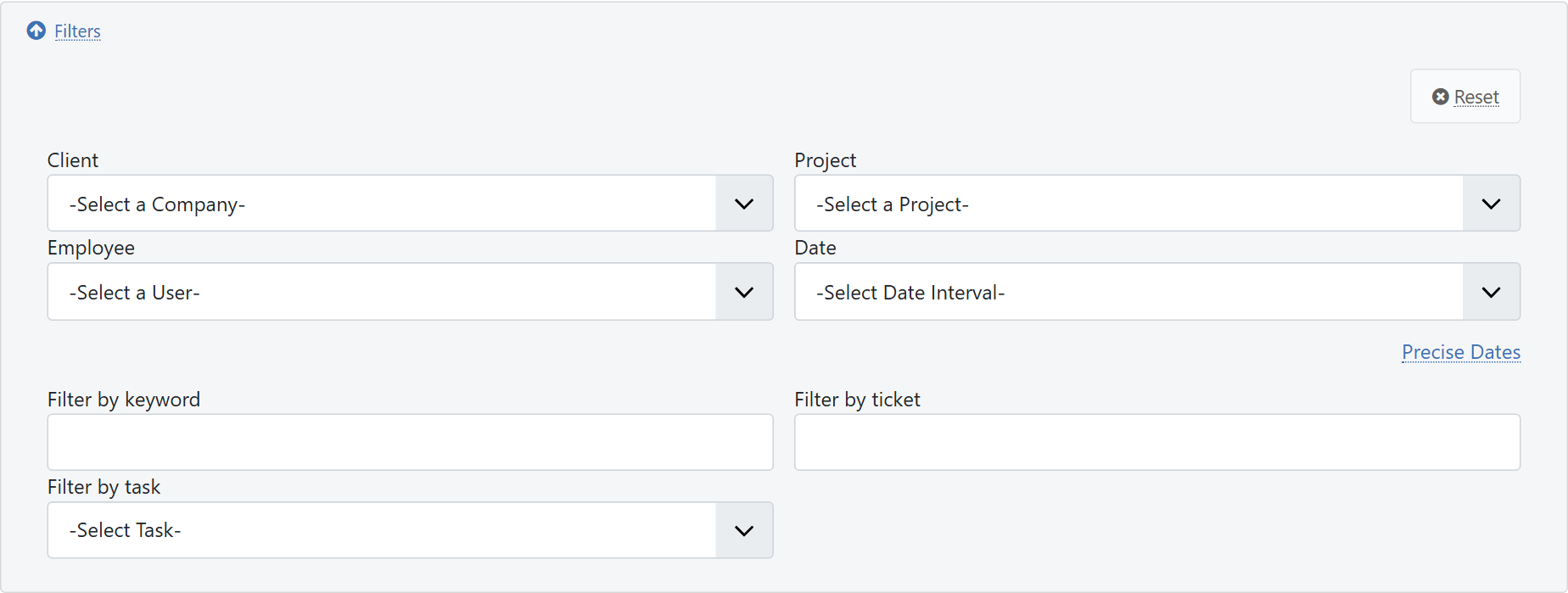
Click Filters to expand the panel:
| Filter | Description |
|---|---|
| Client | Filter by client; updates the project dropdown to that client's projects |
| Project | Filter by project |
| Staff | Filter by employee (managers with report permissions only) |
| Month / Date range | A preset month, or Precise dates for a custom range |
| Keyword | Free-text search across task names and descriptions |
| Ticket | Search by ticket/issue number |
Filters apply via AJAX without a page reload, and your date-range selection is remembered between sessions.
Data Table & Totals
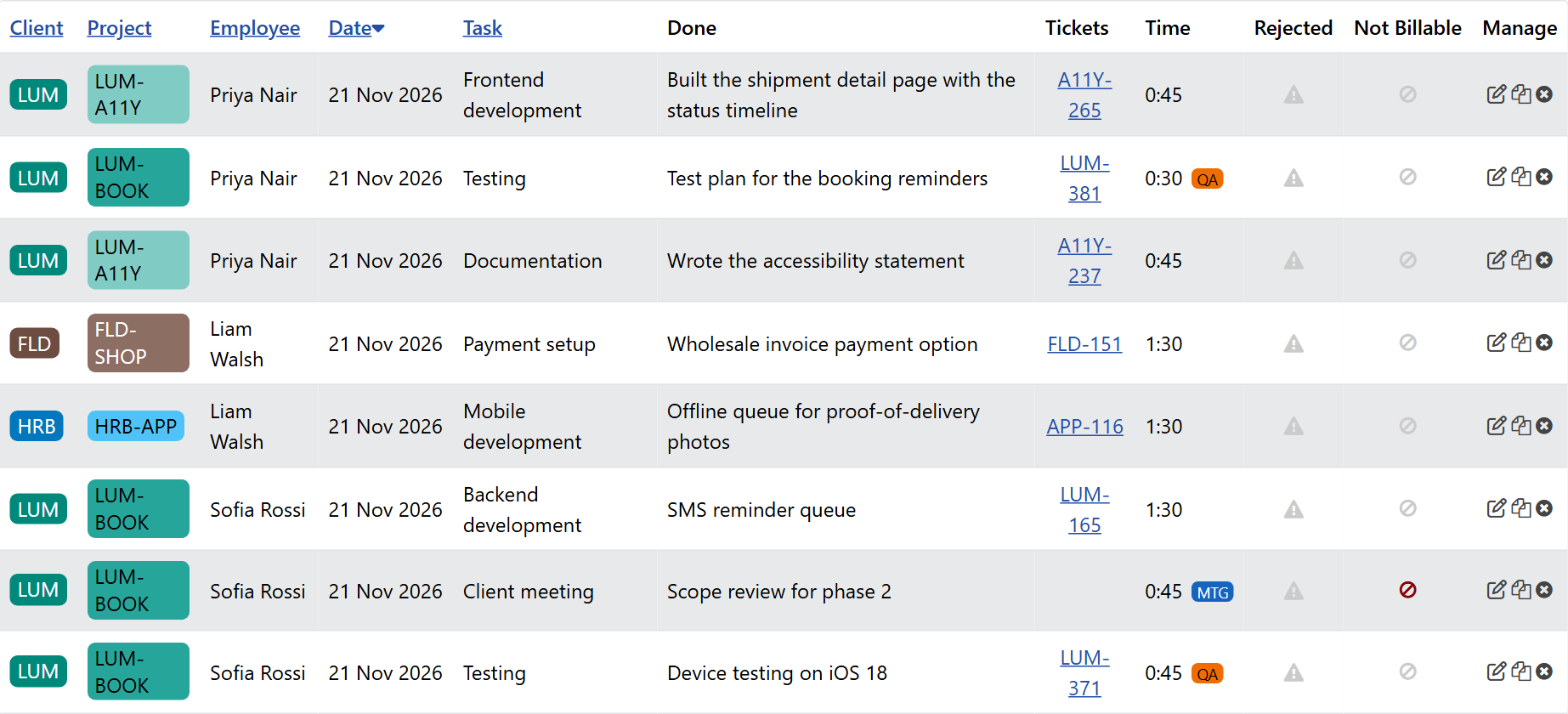
Columns include Client, Project, Employee (manager view), Date, Task, Done, Tickets, and Hours. Click a header to sort; use Table Settings to show/hide columns (saved in cookies). Below the table, summary rows show the current-page total, the grand total across all pages, and the billable total.
Choose how many rows to display (5–100 or All) and page through with the pagination controls.
Creating & Editing Entries
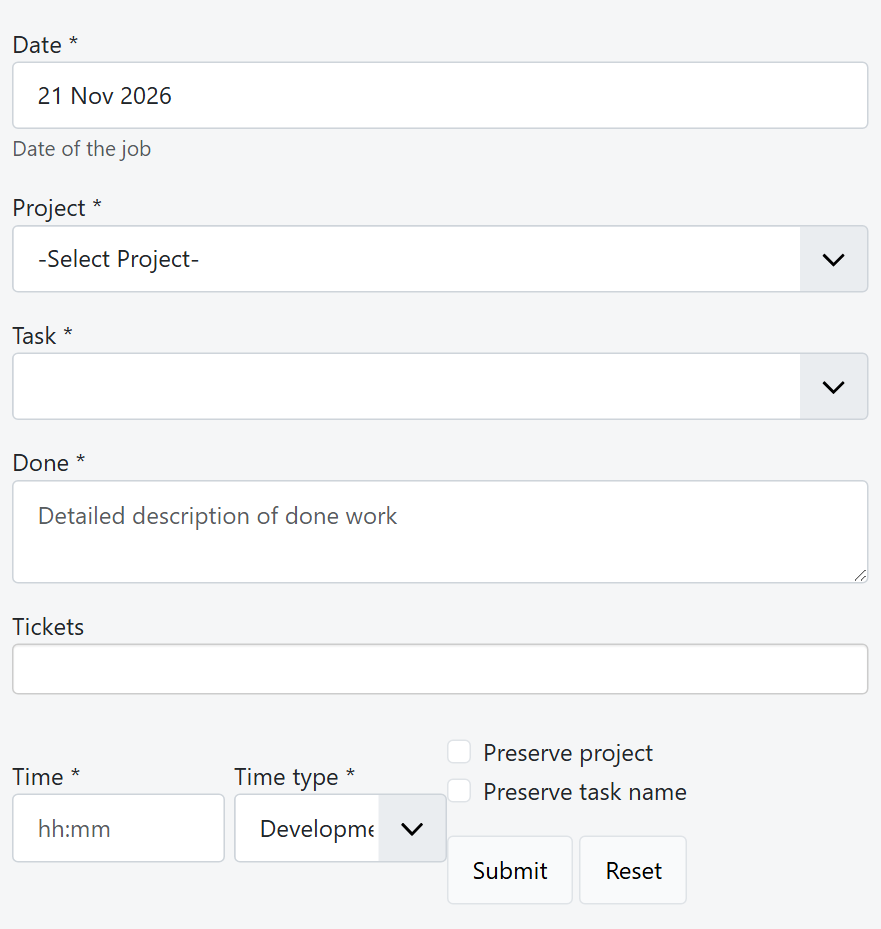
Use the Report Form panel for fast entry:
- Project (required) — choose from your assigned projects.
- Task (required) — type a name, or pick from the list if predefined tasks are enabled.
- Date (required) — pick from the calendar.
- Time (required) — enter hours in HH:MM format (auto-formats as you type).
- Time type — the work category (defaults to the default type).
- Done and Tickets — required or optional depending on Component Options.
Click Submit to save; the table and calendar update immediately. Use the row Edit, Copy, and Delete icons to manage existing entries.
Manager-Only Features
Users with report-management permissions also get a Staff filter, a Reject action (mark an entry rejected with a comment), and a billable toggle to mark entries non-billable (or reverse it).