Dashboard
Components > User Reminder opens the dashboard: who is waiting for a reminder, what was sent, and whether the setup is healthy.
Counters

| Counter | Counts |
|---|---|
| Pending activation | Users who would get an activation reminder |
| Never logged in | Users who would get a never-logged-in reminder |
| Inactive | Users past the inactivity threshold |
| Due now | Users whose next reminder is due and who still have reminders left |
| Sent | Reminders sent in total, in the last 7 and the last 30 days |
| Opted out | Users on the opt-out list |
The counters use the same rules as the sending run, so they match the lists and what the next run does.
Analytics
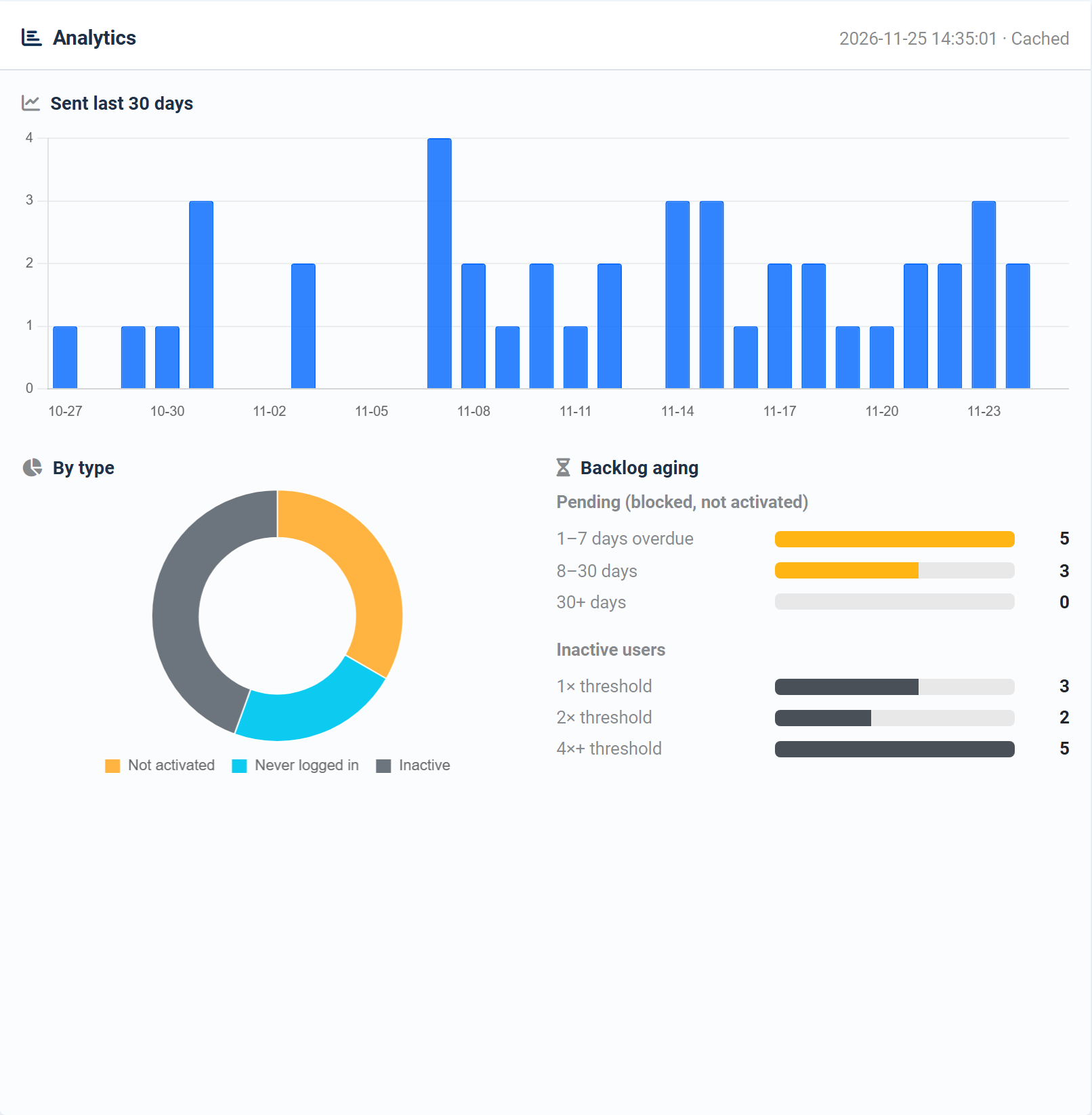
- Last 30 days: reminders sent per day
- By type: reminder history split into activation, never logged in and inactive
- Backlog aging: pending activations by account age (1-7, 8-30, 30+ days) and inactive users by how far past the threshold they are
Health and alerts
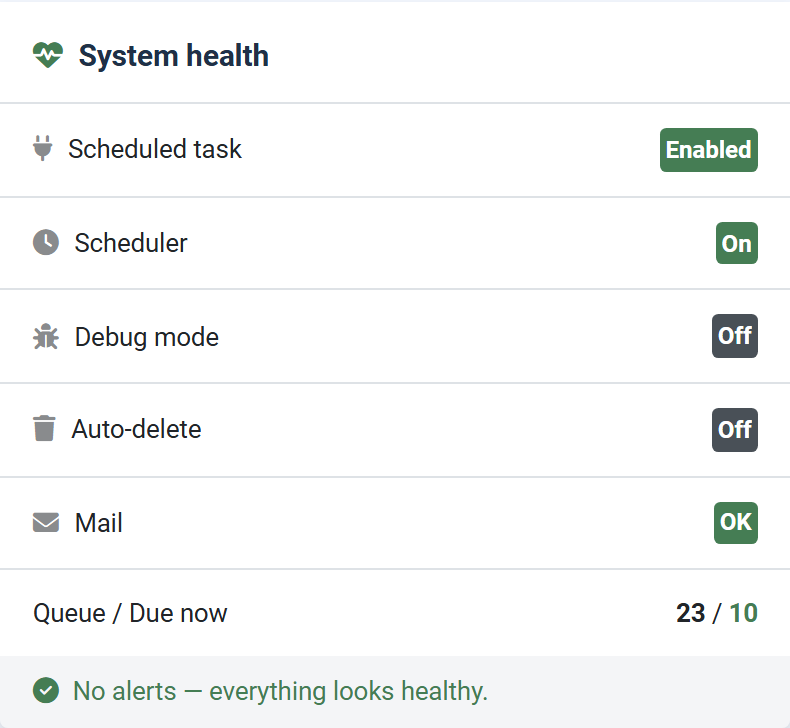
The dashboard checks your setup and shows an alert when something needs attention:
| Alert | What to do |
|---|---|
| Automatic reminders are not scheduled | Enable the Task - UserReminder plugin and the User Reminder emails task. See Scheduling |
| Debug mode is on | Nothing is really sent. Turn off Developer debug mode when you are done testing |
| Deleting users is on | Check the lists before the next run. See Account cleanup |
| Site mail address is invalid | Set a valid From email in System > Global Configuration > Server |
| BCC is on without an address | Enter the address, or turn the copy off. See Email Delivery |
| More users are due than one run sends | Raise Maximum emails per run, or run the task more often |
The Config snapshot box repeats your main options, and the Next run of the scheduled task.
Recent activity
The last reminders sent, the oldest pending activations and the longest inactive users, each with a link to the full list.
Refresh
The dashboard is cached for 10 minutes. Click Refresh for fresh numbers. Changing an option refreshes it too.